

Outlook 2010/2013/2016
For POP3 accounts change to the following.
Outgoing Server: email.tidalhosting.com
Using port 2525 with TLS encryption
Incoming Server: email.tidalhosting.com
Using port 995 with SSL encryption
For IMAP accounts we recommend creating a new account and then copying your mail from your old account to your new one.
Outgoing Server: email.tidalhosting.com
Using port 2525 with TLS encryption
Incoming Server: email.tidalhosting.com
Using port 993 with SSL encryption
Mac Mail
1. Go to the Applications folder and choose Mail, or click the Mail icon from the Dock at the bottom of your screen.
2. From the Mail drop-down menu, choose Preferences.
3. Click Accounts, then choose the account you want to edit or verify.
4. Click on the Server Settings tab.
5. If checked, uncheck the boxes for Automatically manage connection settings.
6. For Incoming mail server under the Host Name Enter:
email.tidalhosting.com
using port 995 POP3 OR 993 IMAP with TLS encryption
7. Under Outgoing Mail Server enter:
email.tidalhosting.com
(If asked Using port 2525 with TLS encryption)
Android
1. From the Email app, press the menu key, then choose Settings.
2. Pick Account settings, then click the account you want to change on the next screen.
3. After that, you have to scroll to the bottom to get More settings, and to the bottom again to change the Incoming settings and Outgoing settings.
Change the Incoming Server Settings to:
email.tidalhosting.com
For IMAP: Use port 993 with SSL encryption
For POP3: Use port 995 with SSL encryption
Change the outgoing server settings to
email.tidalhosting.com
Using port 2525 with TLS encryption
IPhone/iPad Settings – iOS 11
1. From the home screen on your phone click on SETTINGS.
2. In the SETTINGS SCREEN click on ACCOUNTS & PASSWORDS
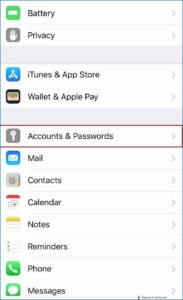
3. You will see a list of all of the email accounts on your phone or iPad. Click on the email account that you need to update the server settings for.
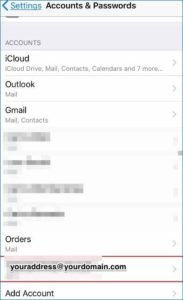
Once clicked you will be brought to the next screen.
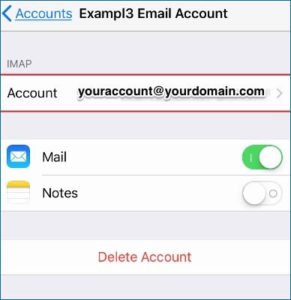
4. Click on the account to get to the email account settings.
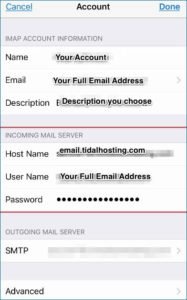
To change your Incoming Server Settings:
You will see either iMAP or POP Account information. Do NOT Change the type of account you have. The settings below will work for POP3 accounts. For IMAP accounts we recommend creating a new account.
1. Enter the new host name: email.tidalhosting.com
2. Using port 993 with SSL encryption
3. Do not change your username and password. If it requires you to reenter it, enter your full email address and your current password.
To change Outgoing Mail Server Settings:
1. Scroll down to Outgoing Server.
2. Click on the SMTP outgoing server (shown with red box below)
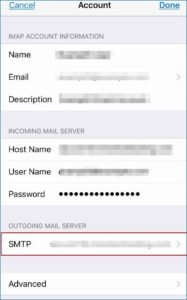
3. You will see a list of OUTGOING SERVERS that have been configured on your iPhone or iPad.
4. The one that is currently set to be used with this particular email account is at the top and highlighted: Primary Server.
5. Click on Primary Mail Server
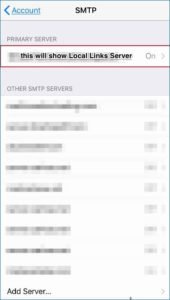
6. You will see the settings for that PRIMARY OUTGOING SERVER:
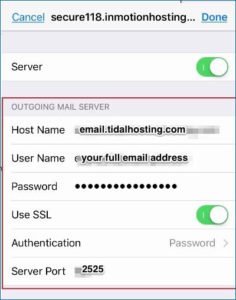
Host Name will be: email.tidalhosting.com
Username is your full email address
Password is the same
SSL is on
Authentication is PW
And Server port is “2525” with TLS Encryption
7. Click Done. It will verify the settings. If it does NOT verify one of the settings is incorrect.
Try reentering the server information. If you still are having trouble please contact us.